Google
Showing posts with label Computer. Show all posts

Monday, November 20, 2006

New Google Stylish Homepage

Do you love Google?      who don't!
Have you get bored of its old homepage style?
If you answered "yes" to the previous questions, and you use Firefox, you'd love what I stumbled upon today, it's a dark neat style for Google Web Search, Google Image Search,  and Google Video.

To use these custom userstyles with Firefox, download and install the Stylish Firefox extension, and paste the following CSS files into a newly created blank style.
Alternatively, you can paste them into your userContent.css file located in your Firefox profile folder.

Google Web Search
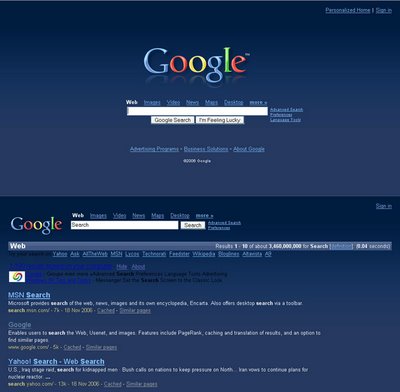


Google Image Search
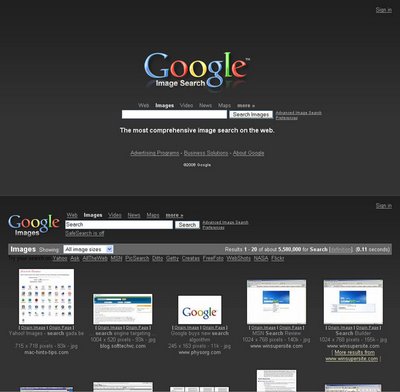


Google Video
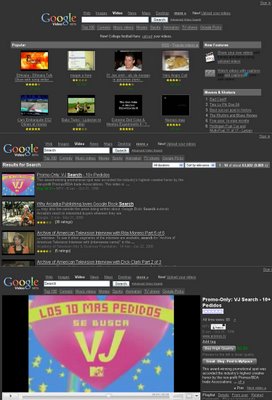


I've stumbled upon this at this webpage.
Tuesday, November 14, 2006

How to hide files in JPEG's

Here is a tutorial on how to hide files in Jpg's. Please note it isn't the most secure method, because the information is stored in plain text but it still cool to play with. A simple solution to make this more secure, is to use encryption on the RAR file when you create it, but thats not the point of this tutorial :) The idea is to show how files can be 'slammed' together, to stop the average PC user from finding them.


You will need the following..
• Windows 2000 / XP (probably Vista, too!)
• Basic Knowledge of the Command Prompt
• WinRar

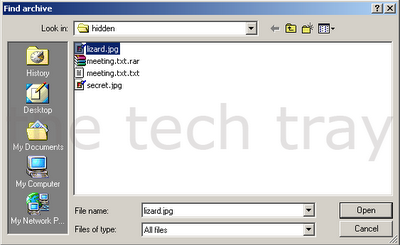
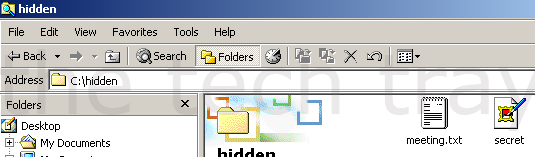
1. Gather your image and the files you wish to lodge into it. Here I have a meeting.txt which which I will slap inside my secret.jpg


2. Add the files you want to hide into a new RAR archive
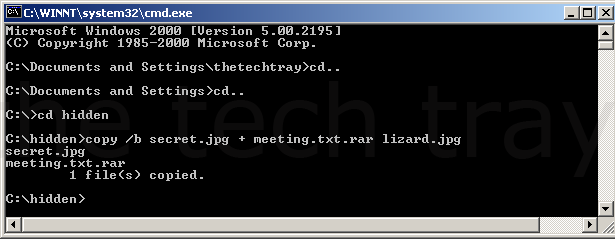
3. Open Command Prompt


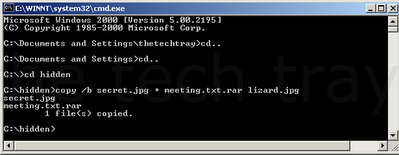
4. Go to the folder where your files are located, in this case 'C:\hidden'
5. Type 'copy /b secret.jpg + meeting.txt.rar lizard.jpg' where secret.jpg is the original picture, meeting.txt.rar is the file to be hidden, and lizard.jpg is the file which contains both.
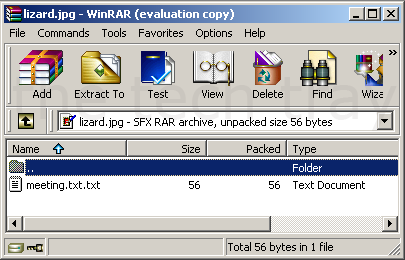
6. Test the JPG by opening it, and verifying it still opens. If it does, try opening the file with WinRar!


7. The completed RAR file!


You may also watch a video showing the process in action at the site I stumbled upon.


I've stumbled upon this at this webpage.
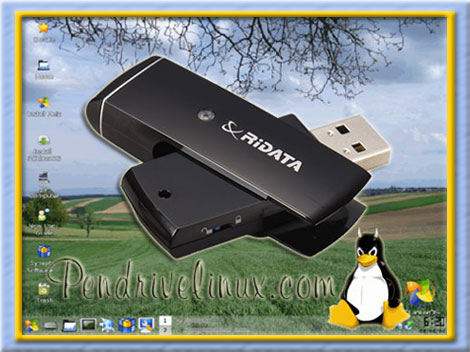
Boot and run Linux from a USB flash memory stick.


By installing Live Linux on a memory stick, you can potentially bring your operating system, favorites, e-mail applications, personal settings and files with you. A USB Linux installation enables you to run the operating system on any computer that can boot from the USB flash device. It’s like having your personal operating system in your pocket.

At Pendrivelinux.com, you’ll find many simplified How-to tutorials and walkthroughs consolidated in one place for your convenience.


I've stumbled upon this at this webpage.